

The Homeroom Guide
Homeschool tracking for the whole family. This guide covers everything from first setup to weekly reports, starting with the five-minute version.
The one rule that runs everything:
Green means done. Always. A lesson is green only when a student (or you) checks it off. Anything not green past its day turns red. Colors are automatic; nobody can repaint them by hand.
Quick start
From nothing to a working homeschool in about five minutes.
- 1
Create your family
Open Homeroom, choose Create family, and pick a family name, email, and password. That password is the parent key: it protects settings, editing, and overrides, so don't share it with the kids.
- 2
Add your students
Settings → Students → Add student. Give each one a name, an avatar, and (optionally) a 4-digit PIN. Skip the PIN for young kids so they can tap straight in; add PINs if siblings share a device and like to meddle.
- 3
Create subjects
Settings → Subjects. Tap a preset chip (Math, Language Arts, Science, History…) or type your own. Pick a color and the days of the week the subject happens, and turn on grading if you want it (letters, percent, or pass/fail). Keep core subject colors the same for every student; the calendar becomes readable at a glance.
- 4
Fill in lessons
The fastest path for a full curriculum: Add → Generator. Tell it "Lesson {n}", how many, and a start date, and it lays out the whole numbered sequence across that subject's school days. Have a spreadsheet from your curriculum provider? Add → Import and paste it straight in. One-offs go in Quick add.
- 5
Hand the device over
Tap Switch to student view and pass the tablet. Your student sees only their day: they tap a lesson, read the instructions, open any links, and hit the big green Mark Complete. You see it turn green instantly on your side.
- 6
End the week with a report
Reports shows every student side by side: lessons done out of planned, percentages, grades. Export CSV for your records or print it. A frozen snapshot also saves itself every Monday morning.
The daily flow
Two views, one truth: parents plan, students check off.
Parent mode
Today is your home base: one card per student with a progress ring and the day’s lessons. Tap any lesson to read it, change its status, add notes, edit, or delete. Parents can override anything, including un-completing a lesson a student checked by mistake.
Student mode
- Switch to student view switches the device into kid mode. A student with a PIN enters it on a big friendly keypad; one without taps straight in.
- A parent can open that profile on a shared device or the student's own device. Students do not have independent email sign-ins.
- Opening a lesson marks it In progress automatically, so you can see who has started.
- Mark Complete turns the lesson green, adds a ✓ to its title, and quietly records the completion time. If the subject is graded, a small prompt asks how it went (skippable).
- Mis-taps happen: students get a 15-minute window to undo their own check-off. After that, only a parent can change it.
- Students cannot edit lessons, change dates, recolor anything, or reach settings. Getting back to parent mode requires the family password.
Adding lessons
Four ways in, from one-at-a-time to a whole year at once.
| Method | Where | Best for |
|---|---|---|
| Quick add | Add → Quick add | A single lesson with full detail: instructions, links, time, duration. |
| Generator | Add → Generator | Numbered sequences ("Lesson 1…120") spread across the subject's days automatically. |
| Import | Add → Import | Paste from Excel, Google Sheets, or any CSV. Columns: Lesson Name, Description, Resource URL. You get a preview before anything is created. |
| Rapid add | Any subject's lane view | Typing a term's worth of titles fast: each Enter adds a lesson on the next open day and keeps your cursor in the box. Auto-number can be turned off and is remembered for each subject. |
Every lesson can carry instructions, unlimited resource links (textbook pages, websites, videos), a lesson number, an estimated duration, and either a start time or all-day placement. Lessons always land on their subject’s configured weekdays, skipping breaks and holidays.
Teaching two kids at once
Plan the curriculum once, then hand the same work to another student.
Twins working through the same book, a younger sibling starting the program the older one used, a neighbor's child joining for science: whenever two students do the same material, plan it once and copy it. Each student still gets their own lessons, their own check-offs, and their own records.
| Copy | Where | Best for |
|---|---|---|
| A whole subject | Subject page → Copy to student… | The usual case: every lesson in the subject moves across in one go, on the same days and dates. |
| One lesson | Open the lesson → Copy to another student… | A single shared activity: one science experiment, a field trip write-up, a read-aloud. |
What comes across
The plan, not the progress. Titles, lesson numbers, instructions, resource links, dates, times, and durations all copy. Grades, notes, check-offs, and forwarding history stay with the original student, so a copied lesson always starts fresh even when the first student has already finished it. That matters mid-year: you can copy a subject you are halfway through and the other student begins at the beginning of it, not at your first student's progress.
Where the lessons land
If the other student already has a subject with the same name, the lessons join it. If they don't, Homeroom creates it for them as a copy of yours, keeping the color, the weekly days, and the grading scale, and tells you it did. Either way you end up with one subject per student, not a pile of near-duplicates.
Copies are ordinary lessons once they land. Edit, reschedule, forward, or delete them for one student without touching the other, and if the two children work at different speeds, forward each student's subject independently.
Forwarding lessons
Sick week? Field trip overload? Move everything in one click without breaking the sequence.
- Forward All lives on every subject page, and a recovery banner appears on Today whenever missed lessons pile up.
- Two modes: push everything by N school days, or pick a resume date (the default when recovering missed work is to resume today).
- Forwarding moves every incomplete lesson in the subject, including upcoming ones, so the sequence keeps its exact order with no gaps and no doubled-up days. Completed lessons never move.
- Weekends, breaks, holidays, and each subject’s own weekly rhythm are respected automatically.
- You always see a preview first: how many lessons, per subject, and each subject’s new finish date. Nothing changes until you confirm.
- If a subject can’t fit before your school year ends, Homeroom says so and leaves it put rather than scheduling past the end. Extend the year end in Settings and forward again.
- Forwarded lessons show blue until they’re completed, so you can spot rescheduled work.
AI helpers
Five optional helpers for the busywork. The AI proposes; you approve; nothing changes without you.
The AI helpers appear in parent mode when enabled for your account and site. They all follow the same rule: you see exactly what will change, you can correct anything, and nothing is saved until you confirm. Students never see or use the AI.
Photo import: snap a curriculum page
Add → Photo. Photograph a table of contents, a scope-and-sequence chart, a weekly schedule grid, or even a handwritten plan. Homeroom reads every line and shows a preview: each row numbered, with page ranges and details kept as the lesson description. Pick the destination subject, the first lesson date, and the starting number, then import. Lessons land on that subject's weekly days automatically. Reading the page takes just a few seconds.
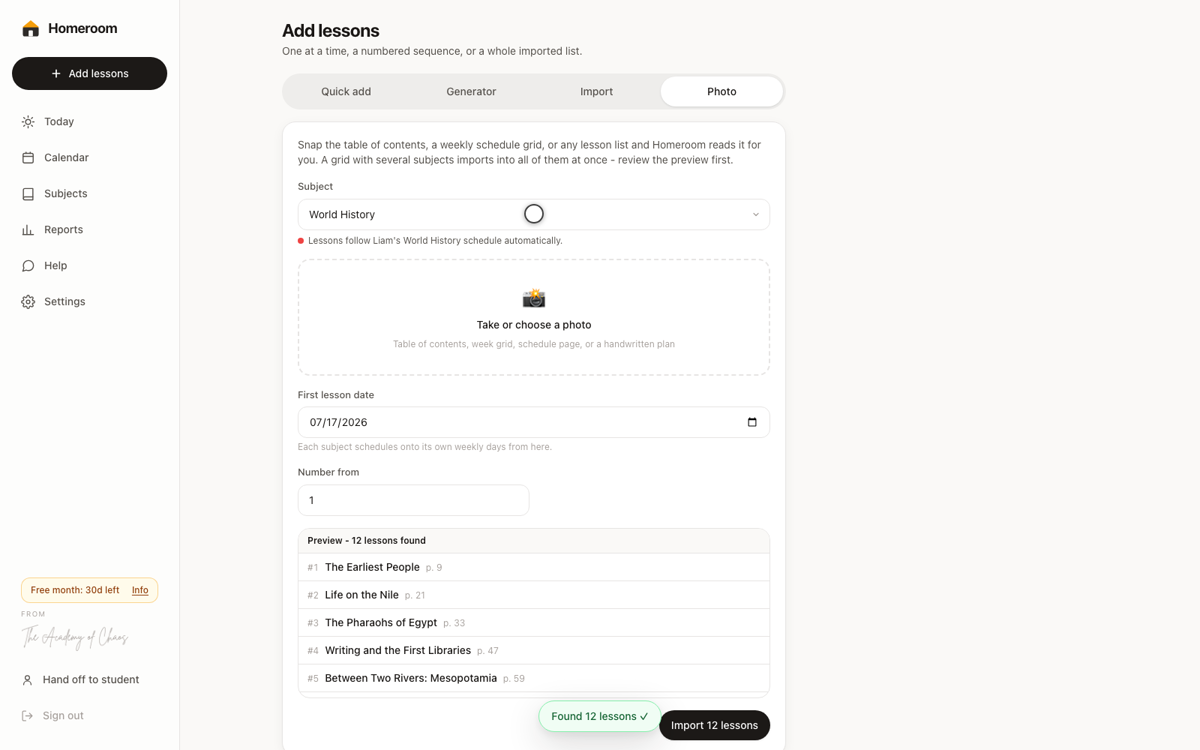
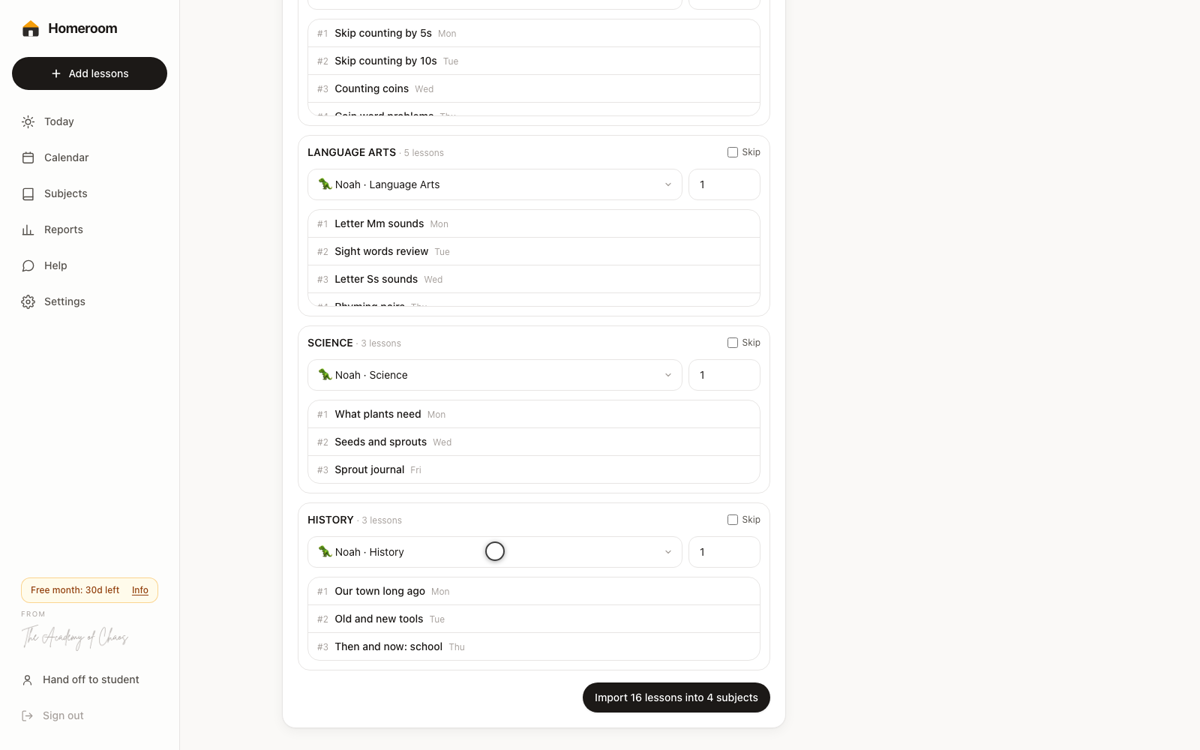
A page with several subjects (like a week grid with a column per subject) imports into all of them at once. Each detected column gets its own card: confirm or change which subject it belongs to, skip columns you don't want, and adjust each column's starting number. Two columns can't point at the same subject, and each subject schedules onto its own weekly rhythm from your chosen start date, so the printed weekday layout doesn't constrain anything. If a sequence can't finish before your school year ends, that column stays put and tells you; extend the year in Settings and import it then. Columns that already imported can't accidentally import twice.
Quick log: say what happened
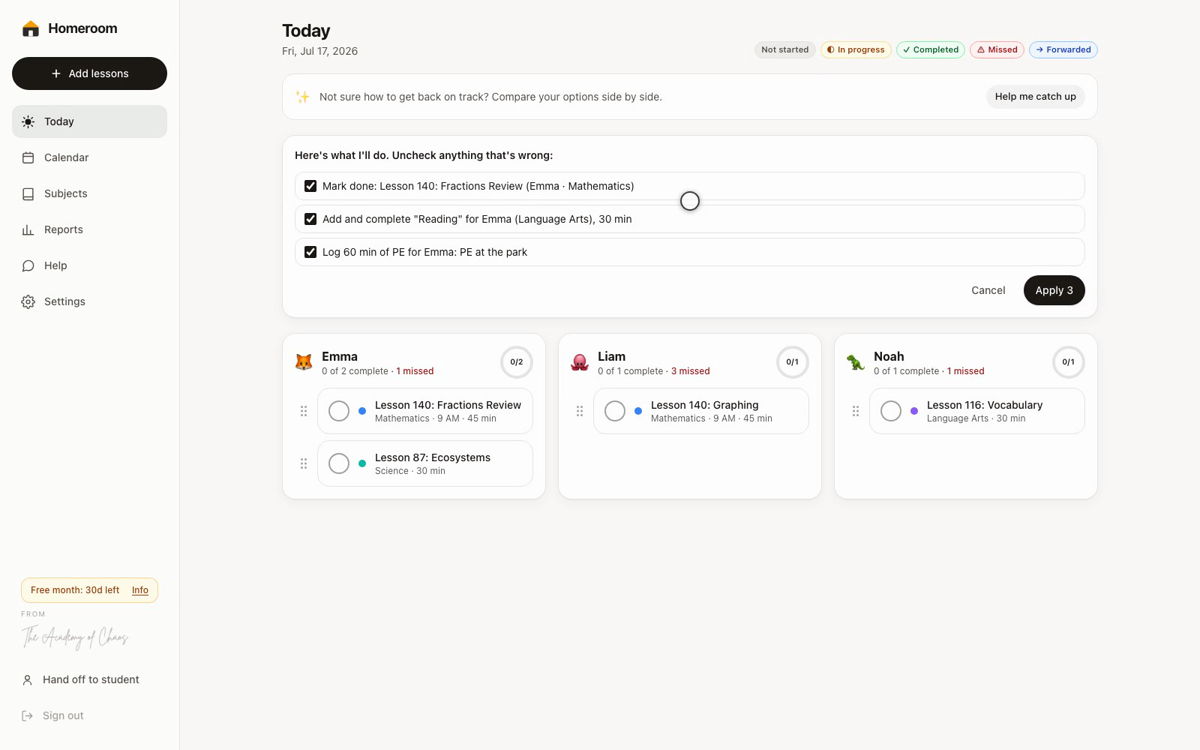
The sparkle box at the top of Today. Type the day the way you'd tell a friend: “Emma finished her math lesson, read for 30 minutes, and did an hour of PE at the park.” Homeroom matches it to your family's real lessons and proposes the updates: check-offs, logged activity time, and ad-hoc lessons for work that wasn't on the schedule. Uncheck anything that's wrong, then Apply. Wording it couldn't place is listed rather than guessed at. On browsers with speech support, the microphone fills the same box by voice.
Grade a worksheet from a photo
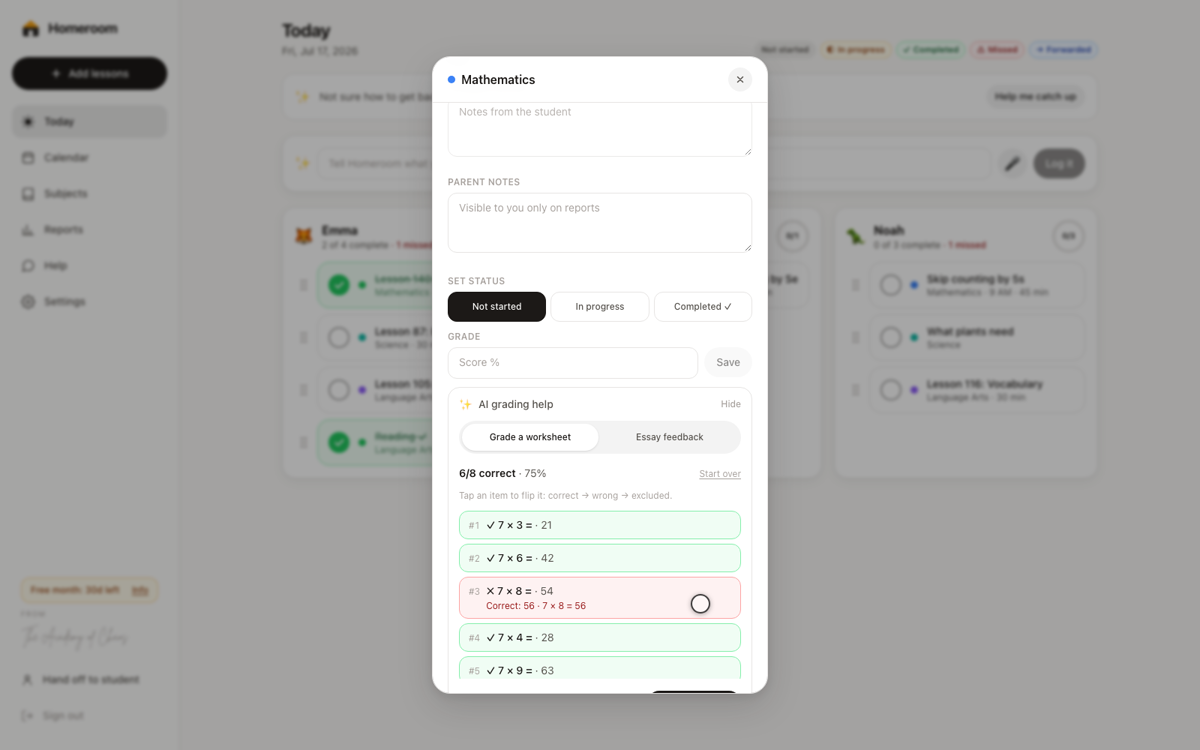
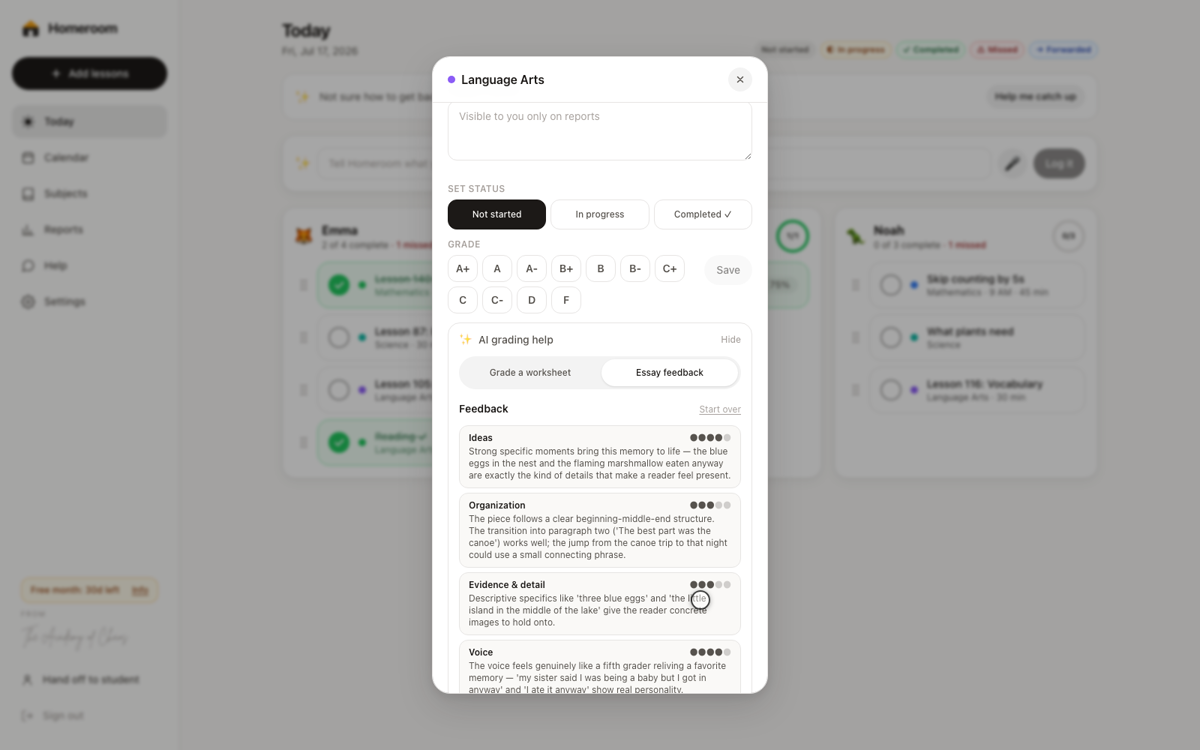
Open any lesson in a graded subject and expand AI grading help. Photograph the completed worksheet (add a photo of the answer key too, for strict checking) and Homeroom reads each visible answer, marks it right or wrong with the correction shown, and suggests a score in your subject's grading scale. Tap any item to overrule it: correct → wrong → excluded, and excluded items drop out of the score. Save writes the grade; the “Also mark done” checkbox completes the lesson at the same time. It's a second pair of eyes, not an autonomous grader: you stay the teacher of record.
Essay feedback you can teach from
In the same panel, Essay feedback. Paste the writing or snap up to three photos of handwritten pages, optionally set a grade level, and you get a six-trait rubric (Ideas, Organization, Evidence & detail, Voice, Sentence fluency, Conventions) scored out of five with a comment each, the piece's genuine strengths, and the two or three next teaching moves that matter most. Unlike the other helpers, this one takes about half a minute: the essay is read and weighed in full before anything is scored. The feedback is written for you, the teacher; share what helps. Copy it with one tap, adjust the suggested grade if you disagree, and save when ready.
Help me catch up
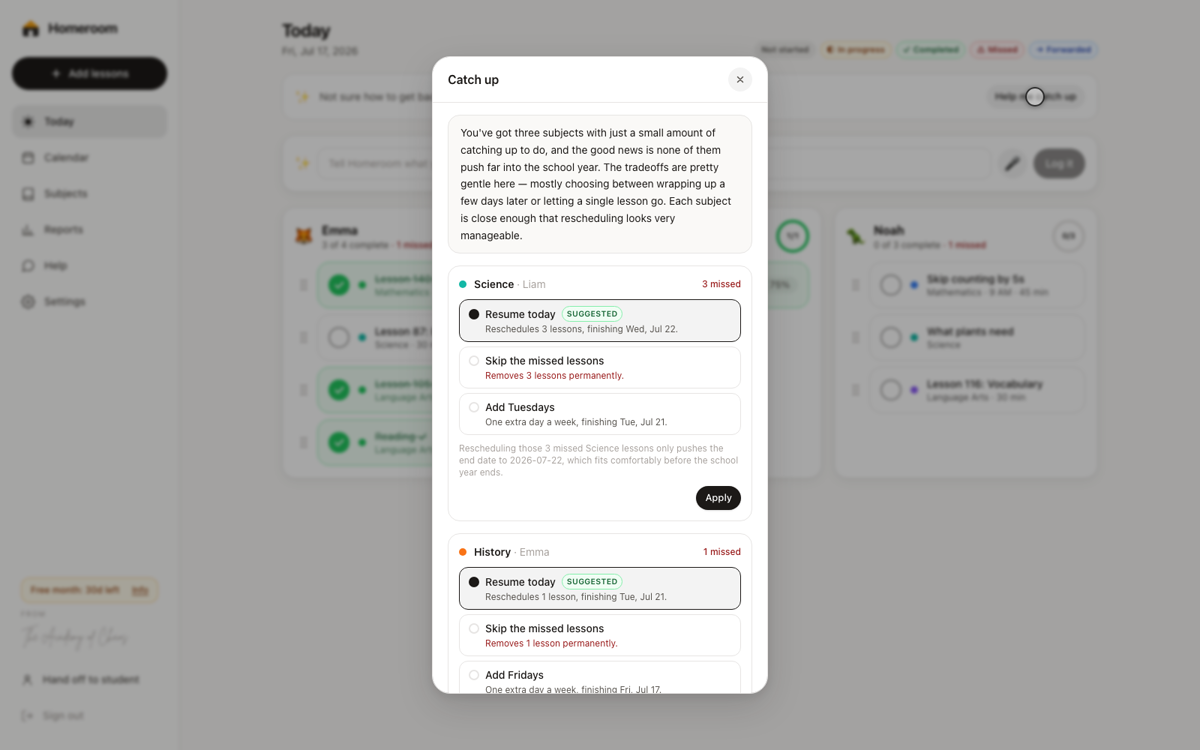
When missed lessons pile up, the Help me catch up card on Today compares your real options for every behind subject: resume today and push the sequence, skip the missed lessons for good, or add a school day each week. Every option shows exactly how many lessons move and the new finish date, one option carries a Suggested badge with the reasoning spelled out, and the date math is computed exactly (only the plain-language summary comes from the AI). Skipping asks a second time before it removes anything, and resume is disabled when the sequence can't fit before your year end.
Connected AI assistants
Plan with your assistant. Review and Apply in Homeroom.
Family owners can open Connections to set up ChatGPT or hosted Claude. The production endpoint is https://homeroom.academy/mcp. Your provider account must support custom MCP connections and the required actions. Provider subscriptions, usage limits and account eligibility are separate from Homeroom.
- Connect through the enabled provider's setup page and confirm that Homeroom tools are discovered.
- Choose the child privately in Homeroom. Refer to the selected child in chat; do not paste names or private records into the assistant.
- Agree on the plan before saving a private draft. Saving a draft does not change live records.
- Open Private change drafts, review and correct the content, and prepare the exact preview.
- Check every affected record, date and count, then confirm Apply inside Homeroom. Rollback requires its own review and can be blocked by later work.
Supported proposals include published-curriculum school-year plans, custom lessons and authorized planner imports, rescheduling, lesson records, instruction time, attendance, reading, private reports and copying within your family. Imports start with fresh progress; they do not migrate grades or completion history. Grade edits stay in the ordinary app. MCP execution is blocked for a child with an external-calendar connection.
Grok, Gemini and unreviewed clients are unavailable. An enabled setup path or connected badge does not prove every provider account can use the tools. Read the MCP guide for setup, workflows, permissions and recovery. Built-in AI helpers remain a separate way to work inside Homeroom.
Calendar and subjects
Color is the language: one glance tells you the day.
Calendar shows the family week: every student, every day, each lesson as a colored pill. Filter to one student, hop between weeks, tap any pill to open it. Subjects lists each student’s subjects with progress bars, missed counts, and finish dates; tap one for its full lane: every lesson in order with a rapid-add box at the bottom.
The suggested core palette. Ten colors are available; green is reserved for completed work, always.
Reports, attendance, transcript
Your records, computed continuously and frozen weekly.
- Weekly report: all students side by side, one row per subject, ✓/total and percent complete, then a full per-student breakdown with dates, grades, estimated vs. actual minutes, and notes. Browse any week, past or current.
- Snapshots: every Monday morning Homeroom freezes the prior week’s report permanently, so your records can’t drift if lessons are edited later. Save snapshot does the same on demand.
- Export CSV downloads the whole report in a file that opens directly in Google Sheets or Excel.
- Attendance: a day counts as attended when at least one lesson was completed that day, or when you explicitly mark attendance for a field trip, co-op, or other learning day. Each date counts once. Planned and attended days are tracked separately per student.
- Transcript: year-to-date per student: lessons completed, grade averages, hours, and a weighted GPA, with a print layout suitable for official records.
- Instruction hours: completed lessons count their actual or estimated minutes. Add field trips, PE, co-op days, projects, life skills, and Library separately. Your family can add and archive its own activity types. Compare yearly and quarterly totals with an optional hours goal set on each student; the printable log shows Library as its own total.
- Reading log: record titles, authors, start and finish dates, and notes. The printable log is ready for portfolios and evaluator paperwork.
Printing
Eight clean, black-and-white friendly layouts. No app chrome.
| Print type | What you get |
|---|---|
| Daily schedule | One student's day as a checklist with instructions and links. |
| Weekly schedule | The week grid per student with completion checkboxes. |
| Weekly report | The full report: summary table plus per-student detail. |
| Subject lesson list | A subject's entire sequence: number, title, date, status, grade, notes. |
| Progress report | Report-card style: completion percent, grades, and hours per subject. |
| Transcript | GPA-style annual summary with a signature line. |
| Instruction hours | Per-student totals, lesson subjects, activity types including Library, and target progress. |
| Reading log | A dated list of titles, authors, completion dates, and notes. |
Every print view has a Print button; choose “Save as PDF” in the print dialog to get a file instead of paper.
School year settings
Set the calendar once; everything else respects it.
- Year start and end: lesson scheduling and forwarding never plan past the year end.
- School days: which weekdays your family does school. Subjects can narrow this further (Science on Mon/Wed/Fri, History on Tue/Thu).
- Breaks and holidays: add a name and a date range. New lessons and forwarding skip those days. If lessons are already there, Homeroom previews the affected subjects and can shift the unfinished sequence while leaving earlier and completed work alone.
- Terms: semesters or quarters, used to group the transcript.
- Missed cutoff: the hour when today’s unfinished lessons turn red (5 PM by default).
- Timezone: pick yours from the grouped list (US zones first, then the rest of the world, each showing its current UTC offset); “today” and the cutoff follow it everywhere.
- Email digest: optional daily or Monday-morning summaries arrive around 6 AM in your timezone. They start off and can be changed or stopped from Settings at any time.
Teachers, data, and signing out
At the bottom of Settings: bring in a co-teacher, change your password, take your data with you, or sign out.
Add another teacher
Settings → Teachers. Create a one-time invite link and share it with a co-teacher (a spouse, a tutor, a grandparent). They open the link, set their own email and password, and get full access to your students, subjects, and lessons under their own sign-in. You, the account owner, keep control of billing and of adding or removing teachers, and you can remove a teacher any time from the same screen.
Change your password
Settings → Your data & account → Change password. Enter your current password and a new one (at least 8 characters). Each teacher changes their own sign-in: updating yours never affects a co-teacher's.
Export all your data
Settings → Your data & account → Export. You get a .zip containing a full JSON of your account plus every student, and CSV files of your subjects and lessons. It is yours to keep or move elsewhere; passwords are never included.
Sign out
The Log out button sits at the very bottom of Settings (and in the sidebar). It signs this device out and returns to the welcome screen; your data stays safe in your account.
Google Calendar sync
Optional. If your family already lives in Google Calendar, Homeroom meets you there.
- Connect the parent Google account in Settings, then create a “[Name]’s Homeschool” calendar for each student with one click.
- Homeroom asks Google for the narrowest access that exists: it can only create its own calendars and manage events on those. It cannot see, change, or delete anything already in your Google Calendar.
- Every lesson mirrors as an event: subject color, instructions and links in the description, green ✓ when completed, red ⚠ when missed, blue when forwarded.
- Sync is one-way, Homeroom → Google, on purpose: Homeroom stays the source of truth and nobody can fake a completion by editing an event. Updates push moments after each change, with a nightly pass for lessons that became overdue by the clock.
- To give a student their own view, share their calendar with their Google account using Google Calendar’s normal sharing settings.
- Disconnecting leaves your events in place; Homeroom simply stops updating them.
Apple Calendar or Outlook instead?
Every student can have a read-only calendar feed: Settings → Students → edit a student → Calendar feed → Enable, then add the copied URL to Apple Calendar (File → New Calendar Subscription) or Outlook (Add calendar → Subscribe from web). Lessons show with the same ✓ done and ⚠ missed marks. Anyone with the URL can see that student's schedule, so treat it like a private link; you can regenerate or disable it any time.
Help and community
One tab for learning Homeroom and talking with the people who use it.
The Help tab (between Reports and Settings) opens to two things: this User Guide, and a community forum where Homeroom teachers and the team talk.
- Three channels: Bug Reports for problems, Feature Requests for ideas, and Chaos Community for sharing and cheering each other on.
- Threads: start a post with a subject and a message; anyone can reply, and the whole discussion stays grouped together.
- Your name and photo: pick a display name the first time you visit, and optionally add a photo from your profile.
- Mentions: tag someone with @theirname to notify them. A bell collects your mentions, replies, and messages, and each channel shows a count of what is unread.
- Direct messages: message any other member one-to-one from the People list.
- The team: messages from the Homeroom team carry an Admin badge, so you always know who is official.
Install it like an app
Homeroom is a progressive web app: no app store needed.
| Device | How |
|---|---|
| iPhone / iPad | Open Homeroom in Safari → Share button → Add to Home Screen. It launches full-screen with its own icon. |
| Android | Open in Chrome → menu (⋮) → Add to home screen (or “Install app”). |
| Mac / Windows | In Chrome or Edge, click the install icon at the right end of the address bar. |
Installed or not, it’s the same app and the same data: sign in from any device, anywhere.
When you're offline
Dead zone at the park, spotty co-op wifi, a road trip: the school day keeps going.
Whenever Homeroom is open with a connection, it quietly keeps a copy of your family's near-term schedule on that device. Lose the connection and the app switches to that copy: you see today and the weeks around it, and the daily loop keeps working. Check off lessons (with the grade prompt and minutes), add notes, log activity time like a park day, and keep the reading log current. Lessons still turn red at your cutoff hour, even with no signal.
Everything syncs itself
Changes made offline are saved on the device and marked “waiting to sync.” The moment the device is back online (just open Homeroom), they replay to your real records automatically, and attendance counts the day the work was actually done, not the day the device reconnected. If something can't apply, say a lesson was deleted from another device in the meantime, a small notice tells you instead of failing silently.
Handing off while offline
A parent's device can still be handed to a student offline: same PIN gate, and the student sees only their own day. One difference from normal: switching back to the parent view requires a quick password check with Homeroom, so it waits until the device is connected again. The offline screen warns you about that at handoff time.
Questions and tips
I forgot my password.
Use the Forgot password link on the sign-in screen. We'll email you a reset link that works once and expires in 30 minutes. Signed-in teachers can also change their password any time in Settings → Your data & account.
My student checked something off by accident.
They can undo it themselves within 15 minutes (open the lesson, tap undo). After that, open the lesson in parent mode and set the status back.
Can both parents use it?
Two ways. Share the one family account by signing in with the same email and password on each device, or go to Settings → Teachers and invite a co-teacher with their own sign-in. Either way both get full parent control; the account owner keeps billing and teacher management.
A sibling keeps checking off the other's lessons.
Give each student a PIN in Settings → Students. Switching to a student then always requires their PIN.
I teach the same curriculum to two of my kids. Do I have to enter it twice?
No. Set it up for one student, then open that subject and choose Copy to student… to hand the whole sequence to the other one. They get their own copy of every lesson, starting fresh with no grades or check-offs, and the subject is created for them automatically if they don't have it yet. Single lessons can be copied the same way from inside the lesson. Copying again later only fills in what's missing, so it's safe to re-run as you add to the curriculum.
Does Homeroom work without internet?
Yes, for the daily loop. Any device that has opened Homeroom online keeps a local copy of the schedule, so offline you can still see the day, check off lessons with grades and minutes, add notes, log activity time, and update the reading log. It all syncs automatically when you're reconnected, with attendance credited to the day the work happened. Planning tools, reports, and the AI helpers need a connection.
We do school on Saturdays.
Settings → School year → toggle Saturday on. Individual subjects can also include any weekday in their own schedule.
What happens at the end of a break?
If lessons went unfinished before the break, the Today banner offers to forward them. Choose a resume date and the whole sequence picks up there in order.
What counts as a school day for attendance?
Any day the student completed at least one lesson, counted by the day they actually finished it, or a day you explicitly mark attended. Each date counts once. Days with lessons scheduled count as planned days.
What are the AI features?
When enabled for your account and site, five optional helpers are available: photo import (snap a curriculum page and get the lesson sequence), quick log (one plain sentence on Today becomes proposed check-offs and logged hours), worksheet grading from a photo, essay feedback with a rubric, and a catch-up planner that compares recovery options with real dates. Every one shows its proposal and applies nothing until you approve. The AI helpers section above walks through each with pictures.
Is my family's data shared with anyone?
Homeroom does not sell your data, run ads, or use third-party advertising trackers. Data lives in a protected database, and every request requires your sign-in. Optional AI helpers send only the text, photos, and lesson context you submit for that helper to an AI processing provider; the parent approves every change. Homeroom may use non-Google service data to operate, improve, develop, and train its products and AI features. When you correct an AI suggestion, Homeroom keeps an anonymized before-and-after (names become placeholders; your child's writing is never stored) to make the helpers better; you can turn this off any time in Settings under Your data & account. Google sees lesson events only if you connect Google Calendar sync, and that Google data is not used to train generalized AI models. Details: the Privacy Policy and the Security & Trust page at /trust.
Can I change the order of students, subjects, or lessons?
Yes, everything is drag-and-drop. Drag the dots next to any student or subject in Settings to reorder them everywhere, drag lessons in a subject's lane to resequence the curriculum (lessons trade places on the calendar), and drag within a Today card to set the order of a student's day. Changes save automatically.
What does it cost?
Every family starts with a 30-day free trial, no credit card. After that it is $5.99 a month or $49 a year for everything: unlimited students, all reports and transcripts, Google Calendar sync, printing. One plan, nothing gated, and your price never goes up while you stay subscribed.
Can I get my data out?
Yes. Settings → Your data & account → Export gives you a .zip of your entire account and every student. Weekly reports also export to CSV, and every report and list has a print/PDF layout.